

Convert a BAT file to EXE with IExpress
IExpress is a tool included with Windows that packages a batch script into a self-extracting executable. This guide follows its wizard step by step.

IExpress is included with Windows and can package script files into a self-extracting executable. We will create a small batch file and use it to demonstrate the wizard.
1. Open a text editor, copy the code below and save the file as HelloWorld.bat.
The script prints “Hello world, ATA”. Double colons (::) introduce comments in this batch file.
:: Stops the script from printing out commands as they are executed
@ECHO OFF

:: Prints out a message on the terminal
ECHO Hello world, ATA.

:: Waits for a user input before continuing with the rest of the script
PAUSE
2. Open Start, search for iexpress, right-click iexpress.exe and select “Run as administrator” if administrator rights are required.

3. On the first IExpress screen, select “Create new Self Extraction Directive file” (SED) and click “Next”. A SED describes how to extract the files and run the package.

4. On “Package purpose”, choose “Extract files and run an installation command”. This extracts the package and executes the specified command.

5. Enter a package title, such as HelloWorld, and click “Next”. The title appears in prompts shown to the user.

6. Keep the defaults on the confirmation prompt and license agreement screens and click “Next”.
A confirmation prompt asks whether the user wants to proceed; a license page asks them to accept an agreement if one is configured.


7. On “Packaged files”, click “Add”, select HelloWorld.bat and continue.

8. In “Install Program”, enter the command below. /c runs the batch file and then closes the command interpreter.
cmd /c HelloWorld.bat
9. Keep the defaults until “Package Name and Options”.
10. Click “Browse”, choose the output location and name the executable HelloWorld.exe; then click “Next”.

11. Keep the defaults until “Create package”.
12. Click “Next” to create the executable.

13. Open the folder selected in step 10 and run HelloWorld.exe to test the package.
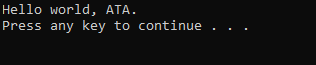
The executable opens a terminal and prints “Hello world, ATA”.
Share
What's Your Reaction?
 Like
0
 Dislike
0
 Love
0
 Funny
0
 Angry
0
 Sad
0
 Wow
0


