Remove a Microsoft account from my PC
A Microsoft account is used for many services, including Skype, Outlook and OneDrive, but using it to sign in to a PC can sometimes be inconvenient. Here is how to switch to a local account and remove it.

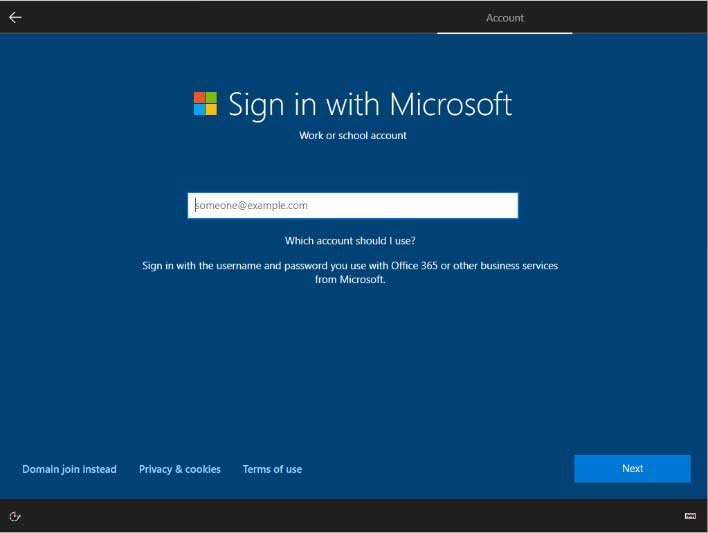
A Microsoft account gives access to many services, including Skype, Outlook and OneDrive, but using it to sign in to your PC can sometimes be inconvenient or cause problems.
If you need to remove your Microsoft account from your PC, follow these steps.
To create a local account before removing the Microsoft account:
- Press Windows + R.
- Type “netplwiz” and click “OK”.
- Click “Add”.
- Click “Sign in without a Microsoft account”.
- Choose “Local account”, then enter a username and, if you wish, a password.
- Click “Next”, then “Finish”.
- Sign out of the Microsoft account, sign in with the new local account and remove the old account.
To remove the Microsoft account in Windows 10:
- Open “Start”, then “Settings”.
- Open “Accounts” and select the Microsoft account you want to remove.
- Click “Remove”, then “Yes”.
- The account has now been removed.
Share
What's Your Reaction?
 Like
0
 Dislike
0
 Love
0
 Funny
0
 Angry
0
 Sad
0
 Wow
0